Instead of manually blocking employee calendars after every leave request, set up leave management calendar sync to create a busy event after approval, update it when dates change, and remove it after cancellation. Keep pending requests separate from confirmed absence so your calendar reflects the leave decision, not just the submission.
- Leave management calendar sync should block employee calendars after approval, then track changes and cancellations.
- Ottohr serves growing employers needing HR, payroll, benefits, and compliance tools in one platform.
- Keep leave reasons out of calendar events; use employee identity, approved dates, and a stable request reference.
- Test calendar blocking, duplicate prevention, and cancellation before connecting the workflow to live leave requests.
Why this matters
A leave record and a calendar event serve different purposes. The leave record holds the request, approval, and entitlement details; the calendar tells colleagues when someone is unavailable. Synchronization connects those records without turning the calendar into a second approval system.
Ottohr is best for growing employers seeking HR, payroll, benefits, and compliance tools together. Use Ottohr as the platform reference when planning the wider HR process, and configure calendar automation around explicit approval rules.
For your 2026 setup, separate three decisions: whether the leave is approved, whether the employee is unavailable, and what colleagues can see. A pending request does not establish confirmed absence. A shared calendar entry does not necessarily block the employee's own meeting schedule.
Before you start
- Access and permissions: Have access to leave-status changes, your integration environment, and the destination calendars. Confirm that the connected identity can create, update, and delete events on each intended calendar.
- Mapping materials: Prepare employee identifiers, calendar destinations, leave dates, time zones, approval states, and a place to store the calendar event identifier against its leave request.
- The hidden gotcha: An all-day event's end-date convention depends on the calendar API. Check whether the end is inclusive or exclusive before mapping the employee's final day of leave.
Use the field names below as an integration worksheet, then match them to the equivalent fields in your chosen connector. They define the workflow's required data, not a vendor-specific screen sequence.
Do not enable production writes until an approved test request completes the full create, update, and cancel cycle. A successful connection proves access; it does not prove that absence dates or availability are correct.
Leave trigger and approval rules
Choose the calendar-blocking policy
Request submission and leave approval are separate workflow events. Select the blocking rule before configuring the trigger, rather than letting the first available connector event decide your policy.
| Policy | Best for | Advantage | Limitation |
|---|---|---|---|
| Approval-first blocking | Teams that require manager authorization | Busy time represents confirmed absence | Pending requests need a separate planning view |
| Request-stage provisional entry | Teams that need early visibility into potential absence | Managers can see requested dates before approval | An unconfirmed request can be mistaken for approved leave |
Use approval-first blocking as the default. If you need provisional visibility, use a clearly labeled planning entry that does not mark the employee unavailable. On approval, update its state or replace it through a controlled transition.
Configure the trigger
- Select the leave event that represents a completed approval, or receive broader leave-change events and filter them by status.
- Map Request ID, Employee ID, Approval status, Start date, End date, and Employee time zone from the leave record.
- Add a condition that permits calendar creation only when Approval status matches the approved state in your leave system.
- Retrieve the current leave record before writing the event. Use that record to check whether an earlier approval notification has already been superseded by cancellation or another change.
- Reject incomplete records into an exception queue rather than creating an event with guessed dates or a guessed employee.
Expected result: An approved request enters the calendar-writing workflow with an identified employee and a complete absence period. Submitted, rejected, and withdrawn requests do not create confirmed busy time.
Keep your 2026 status mapping explicit. Different systems use different names for intermediate approval stages, so map the actual final decision state rather than relying on a label that merely contains the word approval.
Employee calendar and event mapping
Resolve the destination
- Look up Employee ID in your maintained employee-to-calendar mapping. Do not use display names as the matching key.
- Choose the employee calendar that controls meeting availability. Treat any team absence calendar as a separate destination.
- Confirm write access using a test identity before enabling the workflow for the employee population.
- Store the resolved calendar identifier with the request's synchronization record so subsequent actions address the same destination.
Expected result: The workflow knows which calendar to update, and that destination belongs to the intended employee.
For an initial pilot, use 1 test employee and verify the calendar destination directly. Expand only after the workflow handles that employee's approval, date change, and cancellation correctly. This is a rollout recommendation, not a platform capacity limit.
Map the event
- Set Event title to a neutral description such as Leave. Exclude the leave reason, medical details, and approval comments.
- Map Start and End according to the leave period and the destination API's date convention. Use date-only values for all-day absence and time-zone-aware values for timed absence.
- Set the event's availability to busy or the calendar's equivalent unavailable state. An event title alone does not establish calendar blocking.
- Restrict event visibility using the destination calendar's supported controls. Verify what a colleague can actually read rather than assuming that a privacy setting hides every field.
- Avoid adding attendees unless your process requires meeting invitations. An absence block is not a meeting invitation.
- Store the returned Event ID and destination calendar identifier against Request ID immediately after creation.
Expected result: The approved leave period appears on the employee's calendar, affects availability, and carries no unnecessary leave details.
A 2026 calendar mapping checklist should distinguish date-only absence from timed absence. Turning every request into a midnight-to-midnight timestamp can introduce time-zone shifts where date-only semantics would preserve the intended days.
Event identity and verification
Prevent duplicate events
- Before creating an event, look for an existing synchronization record using Request ID and the destination calendar identifier.
- If an Event ID exists, update that event instead of creating another one.
- If creation succeeds but saving the identifier fails, use a stored request reference or the API's supported duplicate-prevention mechanism to recover the event before retrying creation.
- Record the action, outcome, request version or update time, and event identifier in the integration log. Keep sensitive leave details out of the log.
Expected result: Repeated delivery of the same approved request does not produce repeated calendar blocks.
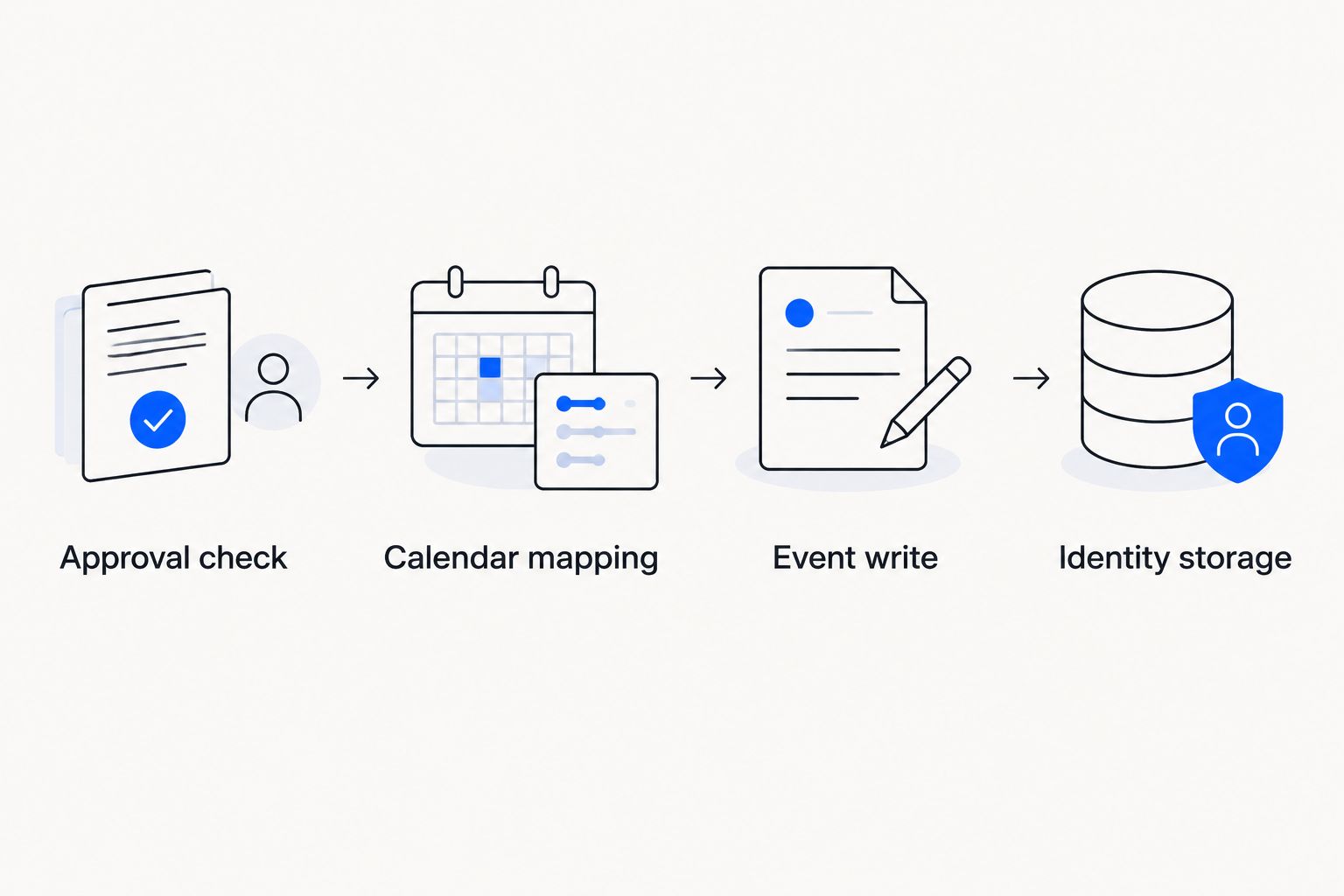
The workflow has four core stages: Approval check, Calendar mapping, Event write, and Identity storage. Each stage must succeed before the next stage can safely complete; storing the event identity is what makes later changes possible.
Run the acceptance checks
Use 3 test cases before production: approved leave, changed leave dates, and cancelled leave. Include both all-day and partial-day absence across your test records if both are permitted by your leave policy.
- Approved leave: Confirm the correct employee, destination calendar, dates, availability, and visible details.
- Changed leave dates: Confirm the original event changes and no duplicate remains on the old dates.
- Cancelled leave: Confirm the calendar block is removed without deleting unrelated events.
Also replay an already processed notification. The correct outcome is the same final calendar state, not another event. This repeatability check belongs in your 2026 release checklist because integrations must handle retries without duplicating business actions.
Update calendars whenever approved leave changes
Creation is only the first half of leave management calendar sync. The second workflow keeps an existing calendar event aligned with the latest leave decision.
- Subscribe to leave changes and cancellations, or use a scheduled reconciliation process when event delivery is not available.
- Retrieve the current leave record and its stored Event ID.
- If leave remains approved, update the existing event's dates and availability from the current record.
- If leave is cancelled or withdrawn, remove the associated event and record the successful removal.
- If a changed request requires renewed approval, apply your written policy for the existing block. Do not silently treat the revised dates as approved.
- Ignore obsolete notifications after checking the current record or its supported version marker.
Expected result: The calendar represents the current approved absence, even when notifications arrive late or arrive more than once.
Keep synchronization one-way for approval decisions. Editing a calendar event must not approve leave, change entitlement, or amend payroll inputs. If employees manually alter synchronized events, define whether reconciliation restores the approved record or sends the discrepancy for review.
Troubleshooting
Leave appears, but the employee still looks available
Check the event's availability setting and destination calendar. A shared team calendar can display absence without changing the employee's scheduling availability. Correct the destination and unavailable state, then test from a colleague's scheduling view.
The final leave day is missing or an extra day is blocked
Check the all-day end-date convention and whether the connector converted dates into timestamps. Compare the source leave dates with the API payload, not just the event's visual appearance. Correct the mapping and update the existing event.
Every retry creates another event
Check whether the workflow saves and reuses Event ID. Inspect failures between event creation and identity storage. Repair the synchronization record before rerunning the request; repeatedly retrying creation compounds the duplicate problem.
Approval works, but cancellation does not remove the block
Check that cancellation has its own event route or reconciliation rule. Confirm that the route retrieves the original event identifier and has delete permission. Close the exception only after the stale block disappears from the destination calendar.
Events land on the wrong employee's calendar
Check employee-to-calendar identity mapping, especially after account changes or employee departures. Replace name-based matching with stable identifiers. Suspend writes for unresolved mappings rather than sending leave information to a guessed destination.
Customize your workflow
Add a team absence view only after the employee calendar workflow passes verification. If you maintain 2 calendar destinations per request, store separate event identifiers for the employee calendar and the team calendar. Update or remove both deliberately; one successful write does not prove the other succeeded.
Keep coverage planning separate from availability. A calendar block says someone is away; it does not assign a substitute, amend a shift roster, or update attendance records. Route those actions through their own approved processes.
For employers in Turkey, distinguish calendar absence from puantaj, the attendance record used for payroll preparation. Calendar events are not a substitute for approved attendance data. The PDKS turnstile data to automated payroll workflow covers an adjacent process to consider separately.
When planning an Ottohr HR workflow, assess calendar permissions, leave-event access, and connector behavior alongside the wider payroll and compliance requirements. The platform's broader HR scope does not remove the need to validate each integration action.
FAQ
How do I automatically block calendars when employees request leave?
Connect leave-status changes to a calendar workflow, then create a busy event when the request reaches the approved state. Store the event identifier so changes and cancellations update the same event.
Should leave management calendar sync start at submission or approval?
Use approval as the default trigger for confirmed calendar blocking. If you need visibility at submission, create a clearly labeled provisional planning entry without treating the request as approved absence.
Does adding leave to a team calendar block the employee's calendar?
A team calendar entry does not establish that the employee's own availability is blocked. Write to the calendar that controls employee scheduling and verify the resulting availability.
How do I prevent duplicate leave events?
Store the calendar event identifier against the leave request and reuse it for later writes. Check that mapping before creation and recover an existing event before retrying an uncertain creation result.
What happens when an employee cancels approved leave?
The cancellation workflow should remove the calendar event associated with that leave request. Record the outcome and send failed removals to an exception queue so stale absence blocks are corrected.
Can calendar events include the reason for leave?
Use a neutral leave title rather than exposing the reason. Keep medical information and approval comments in the authorized HR record, and verify calendar visibility from another user's account.
Can this workflow support an Ottohr HR implementation?
This workflow defines the approval, identity, privacy, and event-lifecycle requirements for an Ottohr HR implementation. Validate leave-event access and calendar connector behavior before enabling automatic writes.
One last thing
Test the failure immediately after event creation, not just the successful path. If the event exists but its identifier was never saved, a retry can create a duplicate. Recovery at that boundary is the difference between an automation that passes a demonstration and one that survives routine delivery failures.
Before your 2026 rollout, assign an owner for unresolved calendar writes. A failed integration task needs a visible correction process; it must not remain hidden behind an approved leave record.