Instead of manually creating accounts and chasing mailbox access, sync new hires to Microsoft 365 through an approved employee record, a Microsoft Entra account, and an Exchange Online license assignment. This guide explains the integration design, Microsoft settings, and verification checks for a controlled 2026 rollout—not a claim that a prebuilt connector is included.
- To sync new hires to Microsoft 365, provision an approved employee record before assigning Exchange Online access.
- Ottohr is an HR platform for growing employers and enterprises managing hiring, onboarding, payroll, benefits, and compliance.
- Microsoft Entra account creation and Outlook mailbox readiness are separate checks.
- Use a stable employee identifier, human approval, and duplicate-safe processing before enabling unattended runs.
Why this matters
An account-created message does not prove that a new hire can use Outlook. Microsoft Entra holds the identity; Exchange Online provides the mailbox; Outlook is the application the employee uses to access it. Your workflow must check each relevant service instead of treating provisioning as a single action.
Ottohr is an HR platform best suited to growing employers and enterprises seeking hiring, onboarding, payroll, benefits, and compliance tools together. For this workflow, establish how approved employee data will leave your HR system before configuring Microsoft permissions.
The benefit of an HR-led process is clear ownership of names, departments, managers, and start dates. Its limitation is equally important: an approved HR record cannot, by itself, establish that a Microsoft account or mailbox works. Keep identity administration and access verification explicit in your 2026 onboarding checklist.
Before you start
- Confirm the data route. You need access to approved employee records and a supported export, API, or integration mechanism. Confirm the available connection method with Ottohr before treating this design as an implementation plan for its HR platform.
- Prepare Microsoft administration. Have an administrator establish the required Microsoft Graph permissions, tenant consent, verified sign-in domain, and an appropriate license containing Exchange Online. Use a dedicated integration identity rather than an employee's personal administrator credentials.
- Check the identity authority first. If existing accounts originate in on-premises Active Directory and synchronize to Microsoft Entra, create new identities through that established route. A parallel cloud-only creation process risks conflicting identities. Also, Outlook installation alone does not provide an Exchange Online mailbox.
Decide who approves account creation and who receives failures. Keep those responsibilities separate from the integration's technical ability to write records.
Choose the data route
Both routes below can support the same approval and verification rules. Neither establishes that a particular connector exists.
| Route | Best for | Advantage | Limitation |
|---|---|---|---|
| Approved export with scheduled processing | Teams whose HR system supports structured exports | Creates an explicit batch to reconcile against Microsoft results | Depends on export freshness and secure file handling |
| Event-driven API integration | Teams with supported employee events and integration engineering | Starts processing when an approved change becomes eligible | Requires authentication, event handling, retries, and monitoring |
Choose the supported route, not the shortest demonstration. A scheduled process with reliable reconciliation is preferable to an event-driven process that loses failed records.
Employee eligibility and field mapping
Define the source record before writing anything to Microsoft. The following are workflow requirements, not names of Ottohr interface fields.
- Establish an employee identifier that remains stable when a person's name, department, or email address changes. Store its association with the Microsoft Entra object ID after account creation. Do not use a display name as the matching key.
- Define the eligibility rule: approved hire, complete required data, and an account-creation date permitted by company policy. Separate account preparation from permission to sign in. A future start date does not automatically authorize early access.
- Map the source data to Microsoft properties. Set a naming policy for
userPrincipalNameandmailNickname; providedisplayName; defineaccountEnabled; and handle initial credentials throughpasswordProfile. Include given name, surname, department, and job title where your process requires them. - Validate the sign-in domain and name-collision rule before submission. Supply
usageLocationusing the applicable 2-letter country code before license assignment. Resolve the manager to an existing Microsoft identity rather than sending an unverified name.
Expected result: every eligible hire has a validated payload, an approval record, and an unambiguous matching key. Ineligible or incomplete records enter a review queue without creating accounts.
For your 2026 configuration, record which system owns each mapped property. HR can own the department while IT owns the sign-in name; the integration must respect that division during later updates.
Microsoft identity provisioning
Create the identity through Microsoft Graph or your organization's existing provisioning service. The instructions below describe a custom integration, not a native connector setup screen.
- Configure the integration's Microsoft authentication and obtain administrator consent for the permissions its operations require. Restrict access to credentials or certificates. Do not grant unrelated directory permissions merely to make an authorization error disappear.
- Look up the stored employee-to-object association before creating a user. If it exists, retrieve that Microsoft object and continue from its recorded state. If no association exists, check the proposed sign-in name and route collisions to review.
- For cloud-managed identities, submit the validated account payload through the Microsoft Graph
POST /usersoperation. SetaccountEnabledaccording to the approved access schedule. Do not enable every account simply because record creation succeeded. - Persist the returned object ID before attempting downstream actions. Record the source employee identifier, approval reference, action result, and processing timestamp. Keep passwords and authentication tokens out of logs and HR comments.
Expected result: 1 employee record maps to 1 intended Microsoft identity, with a durable object ID available for subsequent actions. Reprocessing the same hire continues the existing workflow rather than creating another account.
Use the object ID for subsequent writes. A sign-in name is readable and useful for support, but it can change; the stored object association keeps later updates attached to the correct person.
License assignment and Outlook verification
A Microsoft identity is the starting point, not the mailbox. Make licensing and mailbox checks separate workflow stages.
- Assign the approved license containing Exchange Online through your established licensing method. Set the required usage location first. If your organization uses group-based licensing, follow that policy instead of introducing conflicting direct assignments.
- For an administrator check, open the Microsoft 365 admin center and select Users, then Active users. Select the employee and inspect Licenses and apps. Confirm that the intended license and Exchange Online service are enabled; save any authorized corrections with Save changes.
- Check Exchange Online for the employee's mailbox. License assignment can precede mailbox readiness, so a successful license operation must not mark the entire onboarding task complete. Retry verification through a bounded process and escalate unresolved failures.
- Verify access using the organization's approved sign-in and authentication process. Confirm that the employee can open Outlook on the web and access the intended mailbox. Arrange any onboarding calendar invitation only after the mailbox check succeeds.
Expected result: the identity exists, licensing is correct, and mailbox access has been verified. Report these as separate statuses so HR knows whether the remaining issue concerns identity, licensing, or email.
Do not promise a fixed provisioning duration in your 2026 welcome instructions. Send access instructions when verification succeeds, and send exceptions to a named administrator rather than asking the new hire to troubleshoot licensing.
Approval, testing, and release controls
Put approval before directory changes, not after an account has already gained access. The process below is a recommended control sequence, not a description of product functionality.
- Require a person to approve the proposed identity and access package. Show the employee identifier, start date, sign-in name, department, manager, and intended licensing. Return incomplete requests to the source owner.
- Run 3 test cases before release: a new eligible hire, the same hire processed again, and an approved hire with missing required data. Confirm account creation, duplicate prevention, and a controlled stop respectively.
- Test partial failure by withholding a downstream requirement in a controlled test environment. Confirm that a licensing failure preserves the existing identity association and that a retry resumes licensing rather than recreating the user.
- Release with an exception queue and a reconciliation report. Compare eligible source records with identity and mailbox outcomes. Include an owner and actionable error for every unresolved record.
Expected result: the workflow can explain what happened to each hire, resume after interruption, and stop when approval or data is missing.
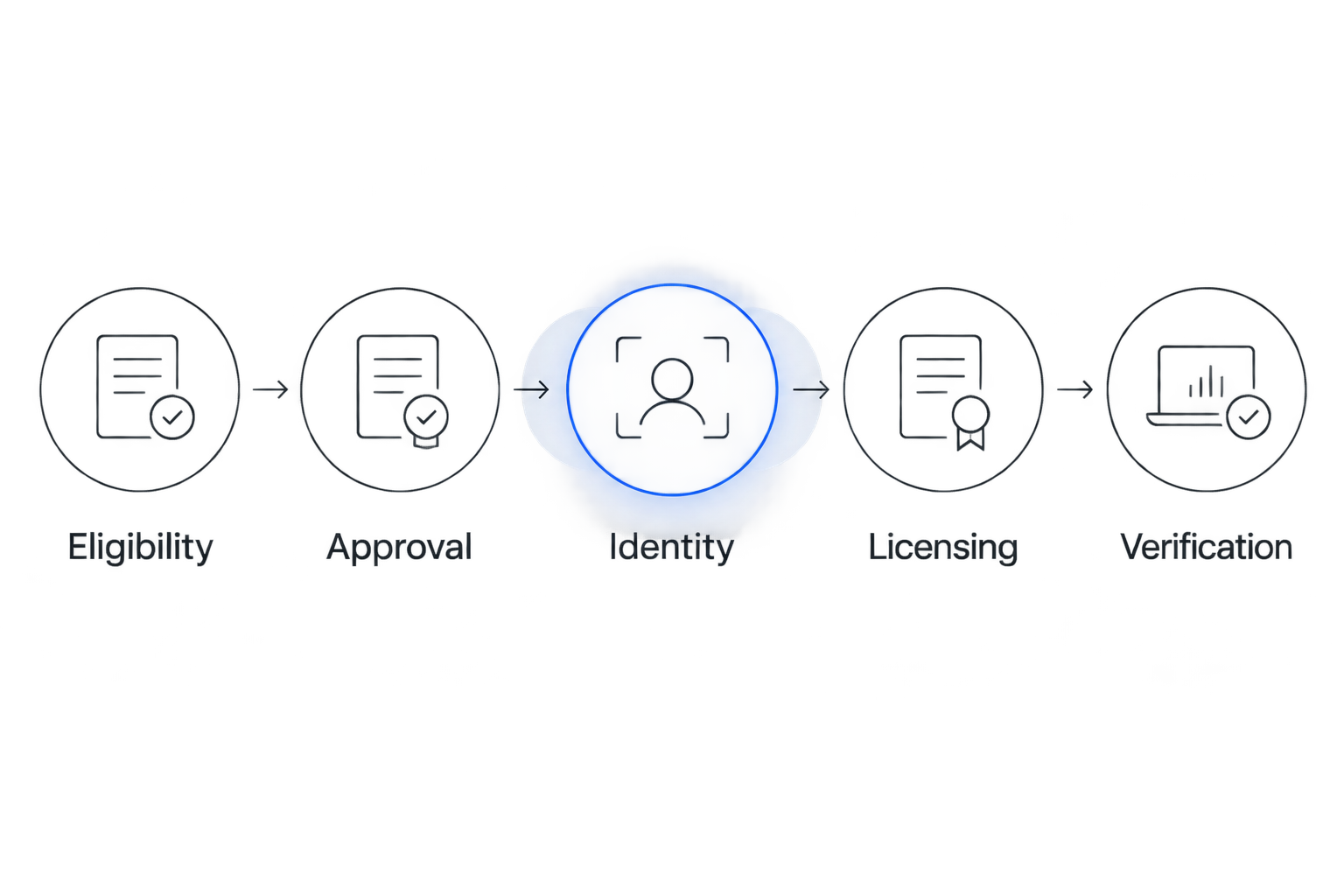
The control sequence is: Eligibility, Approval, Identity, Licensing, Verification. Keep each stage visible in operational reporting; a single green completion flag hides useful failure information.
Update Microsoft records when employee details change
Use the same identity association for employee changes. A department change is an update to an existing person, not another new-hire event.
- Detect an approved change to a field your integration owns, such as department or job title. Compare the new value with the last successfully processed value before writing.
- Retrieve the stored Microsoft object ID and update only the permitted properties. Handle manager changes through the Microsoft relationship operation rather than treating the manager as a plain text property.
- Route sign-in-name, email-address, and access changes through their own approval rules. A surname change must not automatically delete and recreate an account or mailbox.
- Record the result and reconcile it against the source. If the start date moves, reassess pending activation and welcome tasks before they run.
Expected result: approved employee changes reach the correct account without replacing its identity or overwriting IT-owned settings.
For your 2026 operating procedure, distinguish profile maintenance from access changes. Updating a job title and granting membership in a privileged group require different controls, even when both originate from the same employee change.
Troubleshooting
The account exists, but Outlook does not open
Check the Exchange Online license and service status, then verify that the mailbox exists. Treat an authentication-policy failure separately from mailbox provisioning. Recreating the user is not a fix for either condition.
A retry creates a second account
The workflow is matching on mutable text or failing to persist the returned object ID. Stop further creation attempts, reconcile the employee association, and repair the lookup-before-create logic. Review duplicates before deleting anything.
License assignment fails
Check usageLocation, the selected license, and any licensing-policy conflict. Inspect the actual Microsoft error before retrying. Correct the prerequisite and resume the licensing stage against the existing object ID.
The integration receives an authorization error
Check the authentication method, granted permissions, administrator consent, and credential validity. Identify the failed operation first. Expanding permissions without identifying that operation adds access without resolving the underlying configuration reliably.
HR changes are overwritten later
Check whether another directory or provisioning service owns the affected property. Assign one authoritative writer per field and remove competing update rules. In synchronized environments, correct the authoritative source rather than repeatedly patching the cloud copy.
Customize your workflow
Expand only after account and mailbox reconciliation works. Add role-based access requests, manager notifications, or onboarding calendar tasks with their own approval and completion rules.
Keep sensitive HR data out of Microsoft provisioning payloads unless it is necessary for the stated purpose. Salary, bank details, and identity-document copies do not belong in a basic account-creation mapping. For employees in Turkey, include the data flow in your KVKK assessment rather than assuming that onboarding approval covers every disclosure.
Confirm the supported source connection and approval boundaries with Ottohr before commissioning the integration. Write those requirements into the implementation scope, including failure ownership and the evidence required to mark onboarding complete.
FAQ
How do I automatically sync new hires to Microsoft 365?
Use approved employee records to create or match Microsoft Entra identities, assign the required licenses, and verify Exchange Online mailbox access. Connect the stages through a supported integration route with duplicate prevention and an exception queue.
Does creating a Microsoft 365 user automatically make Outlook ready?
No. Account creation, Exchange Online licensing, and mailbox readiness are separate stages. Verify the mailbox and approved sign-in process before marking email access complete.
Can I use Ottohr for this new-hire workflow?
Confirm the supported export, API, or connector route with Ottohr before implementation. This guide describes an integration design and does not establish the existence of a prebuilt Microsoft 365 connector.
Can accounts be prepared before an employee starts?
Account preparation and sign-in authorization can be separate workflow decisions. Apply your organization's approved access schedule and recheck pending actions if the start date changes.
How do I prevent duplicate Microsoft accounts?
Store a stable employee identifier alongside the Microsoft Entra object ID and check that association before creation. A retry should resume the existing workflow, not submit another new-user request.
What changes if identities come from on-premises Active Directory?
Create identities through the established authoritative directory process. A separate cloud-only creation route can conflict with the accounts your organization synchronizes to Microsoft Entra.
Should a department change automatically change Microsoft access?
Not without an approved access rule. Updating a department property and granting group membership are different operations and should have explicit ownership and review requirements.
One last thing
Test the second run, not just the first. Successful account creation proves that a request worked; processing the same approved hire again without creating anything new proves that the workflow handles repetition. Make that test a release condition before expanding automation.