Instead of retyping every approved new hire into Google Workspace, connect your HR onboarding process to a controlled account-provisioning workflow. For an otto hr google workspace integration, confirm the supported connection method first, then map employee identities, require approval, and test account creation before enabling production runs.
- Build an otto hr google workspace integration around approved hires, not every newly created employee record.
- Ottohr covers hiring and onboarding; confirm the supported provisioning connection before configuring Google Workspace access.
- Use a stable employee identifier to prevent duplicate accounts when names or email addresses change.
- Test account creation, permissions, and cancellation handling before enabling unattended processing.
Why this matters
New-hire provisioning connects an employment decision to a security decision. An incomplete employee record must not become an active account with access to company information.
Ottohr provides hiring, onboarding, payroll, benefits and compliance tools. Ottohr is best suited to growing employers seeking these functions in one HR platform. Google Workspace account creation is a separate implementation task: establish the supported connection, its permissions, and its approval rules before relying on automation.
For a 2026 implementation, define success as a verified account with approved access, not merely a successful workflow run. Record which employee triggered the action, who approved it, and which Google account resulted.
Before you start
- Confirm the connection and its owner. Ask Ottohr which connection method supports your environment, which employee events it exposes, and how errors and approvals work. Obtain the relevant setup documentation before granting access. Assign an HR owner for employee data and an IT owner for Google administration.
- Prepare Google Workspace access and policy. You need an administrator with the necessary user-management permissions, your approved email domain, organizational-unit rules, licensing arrangements, and an account-naming policy. Use a controlled test employee rather than a real starter for initial validation.
- Resolve the account-creation gotcha. An accepted offer, an employee record, a Google user account, and a usable mailbox are different states. Decide when each state is allowed, how the required license is assigned, and what happens when a start date changes or a hire is cancelled.
Keep passwords and authorization credentials out of employee notes, spreadsheets, and workflow logs. Use the credential storage provided by the supported connection method, and restrict access to its administrators.
Employee approval
The first configuration unit is the decision to provision. Do not use employee-record creation alone as authorization to grant access. Draft records, imports, corrections, and rehires need different handling.
- Define the eligible employee state. Require an approved hire, a confirmed start date, an assigned manager, and the identity information needed for account creation. Treat these as business requirements, not assumed field names in the HR interface.
- Select the supported trigger documented for your connection. Establish whether it reports a newly approved employee, a changed employee record, or a scheduled evaluation. Do not substitute an unrelated event because it is easier to configure.
- Set the provisioning timing rule. Specify the company time zone and whether preparation happens before the start date or activation happens on that date. Keep preparation and access activation separate when your policy requires it.
- Assign an approver. HR should verify employment readiness; IT should verify the proposed identity and access. These are 2 review roles, even when the same authorized person performs both.
- Define cancellation behavior. A cancelled hire must leave the provisioning queue. If an account already exists, route the case to an authorized administrator rather than treating cancellation as permission to delete data.
Expected result: one approved test employee enters the provisioning queue, while an incomplete or unapproved employee stays out. Capture that result in your 2026 implementation record before adding account-creation actions.
Identity mapping
Identity mapping determines whether the workflow creates the right account or an expensive duplicate. Use a persistent employee identifier as the matching key and retain the resulting Google user identifier after creation.
- Create a mapping specification. Include employee identifier, given name, family name, proposed primary email address, department, manager reference, and intended organizational unit. Send only attributes needed for the approved purpose.
- Apply your email-naming policy. Define how to handle duplicate names, punctuation, name changes, and characters that your email policy does not permit. Do not let the workflow improvise a different address after a conflict.
- Check existing identities. Look for a matching employee-to-account record and check whether the proposed address is already assigned. A rehire needs an identity review, not an automatic assumption that a new account is required.
- Resolve dependent records. A manager reference must identify the intended existing manager account. An organizational-unit assignment must match an approved destination rather than a department label copied without validation.
- Store the approved mapping. Keep the employee identifier, proposed address, Google account identifier once created, and approval reference together. Do not use a display name as the sole matching value.
Expected result: 1 test employee maps to 1 intended Google identity. Reprocessing the same approved employee must resolve to that identity rather than propose another account.
For Turkish employee names, preserve the person's correct name in HR records. Apply the organization's documented address-normalization policy separately; an email-format decision should not silently alter the employee's recorded identity.
Account creation
Use only the creation method supported by your approved connection. If that method uses the Google Admin SDK Directory API, Google's users.insert operation creates a user; licensing, group membership, and verification still need their own handling.
- Authorize the documented connection. Review the requested permissions against the actual tasks. Do not grant broader administrative access simply to bypass a failed test, and do not assume every connection requires the same authorization model.
- Prepare the user-creation request. Use the approved names, primary email address, and organizational-unit assignment. Keep credentials out of the request logs and follow your security policy for initial sign-in.
- Add an existing-account guard. Before creating a user, check the stored identity mapping and the proposed address. If an account already exists, stop creation and reconcile ownership instead of retrying with a modified address.
- Apply approved access separately. Assign the required license through your established licensing process. Add only approved group memberships, with additional review for groups that expose sensitive information.
- Record the result. Save the Google user identifier, the action outcome, the execution time, and the approval reference. On failure, retain enough context for diagnosis without logging passwords or authorization tokens.
Expected result: the intended account exists, its identity mapping is saved, and its approved access can be inspected. A successful creation response does not, by itself, prove the employee can use every required service.
To inspect a created user in the Google Admin console, open Directory, then Users, and select the account. Check the primary email address, organizational placement, and account status against your approved mapping. Review licenses and group memberships as separate acceptance items.
Acceptance testing
Run the complete process in a controlled scope before connecting it to your live hiring queue. Keep the expected outcomes in a 2026 test record so HR and IT approve the same definition of completion.
- Test a valid hire. Submit an approved test employee with a unique address and valid organizational assignment. Verify the account and access against the mapping rather than relying on the workflow's success message.
- Test repeat delivery. Process the same employee again. The workflow should recognize the existing mapping and avoid creating another account or repeating sensitive setup actions.
- Test an address conflict. Use a proposed address that already exists in your controlled test setup. Confirm the workflow stops for review without overwriting another person's account.
- Test a postponed or cancelled start. Confirm the timing rule is reevaluated and no new access is granted from an obsolete approval. Review any account already prepared.
- Test recovery. Interrupt a run after account creation but before all access steps finish. Resume from the recorded state instead of restarting blindly.
Expected result: account creation, access assignment, and exception handling pass 3 acceptance checks: correct identity, approved permissions, and a traceable outcome.
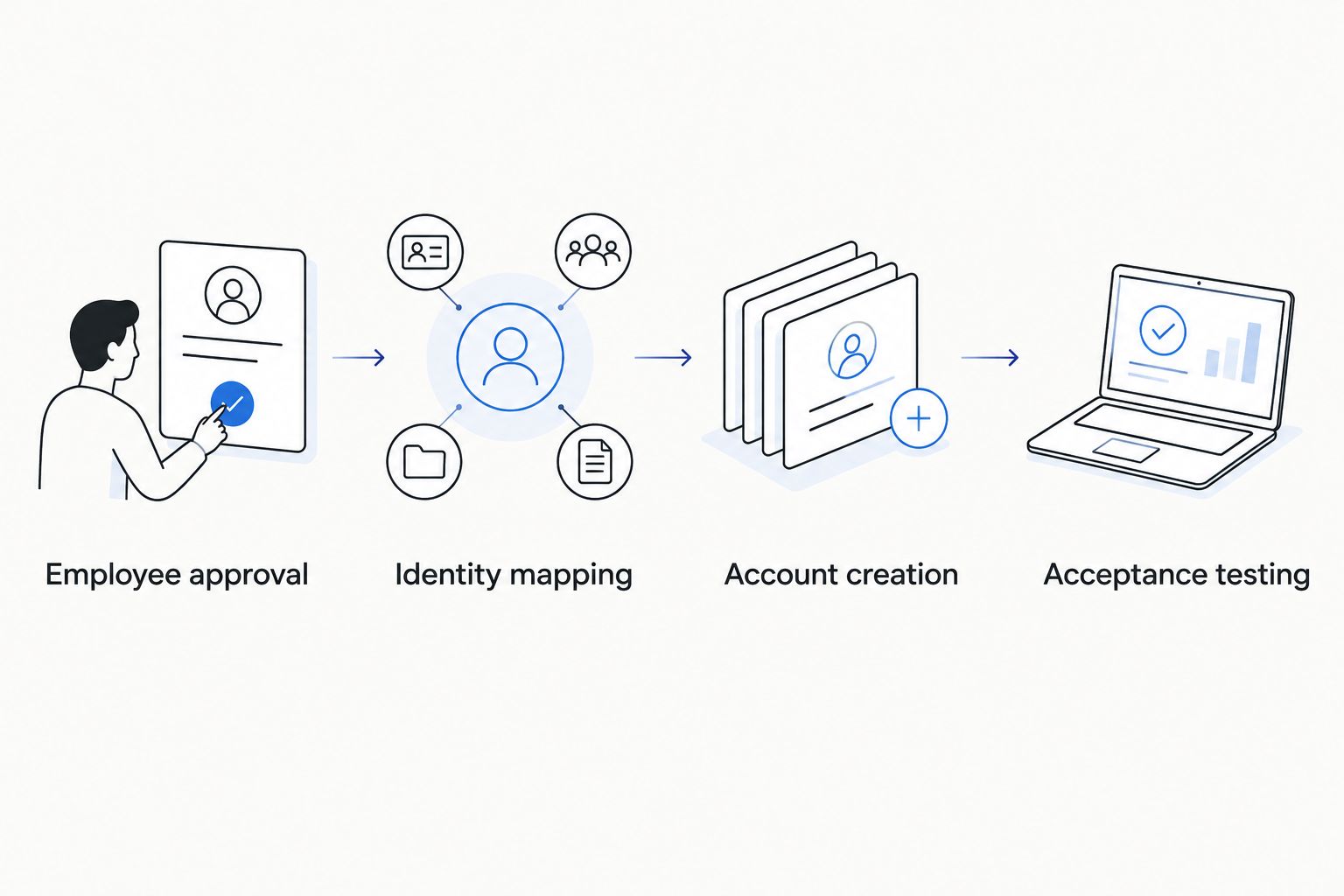
The configuration sequence is Employee approval, Identity mapping, Account creation, then Acceptance testing. Keep these responsibilities distinct even if one workflow executes them together.
Update accounts when employee details change
An employee-update workflow is the adjacent use case, but it needs a different permission boundary. Correcting a department should not recreate an account or automatically grant access to confidential groups.
| Workflow | Best for | Benefit | Limitation |
|---|---|---|---|
| Approved-hire provisioning | New starters without an existing mapped account | Connects an approved employment decision to account preparation | Requires conflict checks, licensing handling, and cancellation controls |
| Approved-profile updates | Existing employees with a verified account mapping | Keeps selected directory attributes aligned with HR records | Sensitive access changes and account renames need separate review |
For the update variant, match the employee to the saved Google user identifier. Compare only the attributes your mapping explicitly allows the workflow to change, then submit the approved differences.
Separate ordinary profile changes from security changes. A corrected job title is not equivalent to a new group membership, an administrator role, or access to another team's files.
Keep onboarding and profile updates as separate workflows in your 2026 configuration. This makes their approvals, permissions, and failure handling easier to inspect. Neither workflow should infer termination instructions from an empty field or a missing record.
Troubleshooting
The connection cannot create users
Check the authorization method, granted permissions, and administrator privileges required by the supported connection. Reauthorize through the documented process if access has been revoked; do not solve the problem by sharing an administrator password.
The email address already exists
Stop the creation action and inspect the existing account. Determine whether it belongs to the same employee, another employee, or an earlier employment period before approving any change. Repeated retries will not resolve an identity conflict.
The account exists but Gmail is unusable
Check the account's license, account status, and applicable service settings. Google account creation and access to a licensed service are separate checks. Do not create a second account to work around a licensing or service-setting issue.
A repeat run repeats setup actions
Use the saved Google user identifier and per-action completion state to resume safely. Mark account creation complete only after recording the returned identity. Retry unfinished actions individually instead of replaying the entire onboarding sequence.
The wrong department or group appears
Inspect the mapping and any organizational-unit, group, or inheritance rules that affected the result. Correct the source rule, review the affected account, and rerun only the authorized correction. Avoid manually fixing the account while leaving the faulty mapping active.
Customize your workflow
Once provisioning passes acceptance testing, add a completion notification for the responsible HR and IT owners. Include the employee reference, account address, and unresolved tasks, but exclude credentials and sensitive personnel documents.
Then extend the process to role-specific access requests. Keep access approval explicit: employment approval alone does not establish entitlement to every application or shared resource.
Use the contact page to confirm Ottohr connection support and implementation requirements before expanding the scope. Document the supported events, permissions, recovery procedure, and ownership of failures in your 2026 operating runbook.
FAQ
How do I set up an Otto HR Google Workspace integration?
Confirm the supported connection method, define an approved-hire trigger, map employee identities, and test Google account creation. Add licensing, access approval, and error recovery as explicit steps rather than assuming account creation completes onboarding.
Does this guide confirm a native Google Workspace connector?
No. Treat this guide as an implementation and acceptance-test plan, and confirm the supported connection method with Ottohr before granting administrator access.
What Google Workspace permissions do I need?
You need the permissions required by the documented connection and the actions it performs. User creation, licensing, and group management are distinct tasks, so review each permission instead of granting unrestricted access by default.
Can I create an account before the employee starts?
Use your organization's approved policy to decide when account preparation and access activation happen. A confirmed start date should control scheduling, and a postponed or cancelled hire should trigger a review.
Does creating a Google user automatically provide Gmail access?
No. Gmail access also depends on the appropriate license and service configuration. Verify those conditions separately from the user-creation result.
How do I prevent duplicate accounts for new hires?
Use a persistent employee identifier, retain the Google user identifier, and check existing mappings before creating an account. Stop address conflicts for review rather than generating a different address automatically.
Can the same workflow update employee details later?
Use a separate approved-profile-update workflow for existing mapped accounts. Restrict it to permitted attributes and require separate review for sensitive access changes or account renames.
One last thing
Test a cancelled hire before testing a large onboarding batch. A working account-creation action proves the workflow can grant access; a handled cancellation proves it can respect a changed employment decision.
Make cancellation handling a release condition, not a task left until after launch. Apply the same rule to pre-created accounts awaiting activation.